Mestra

Mestra Network

Sell the space. Skip the artwork emails.

Let anyone you choose book free time on your screens, through a booking portal under your name. They book and send artwork from the tools they already use, and it arrives checked against your rules and your screens.
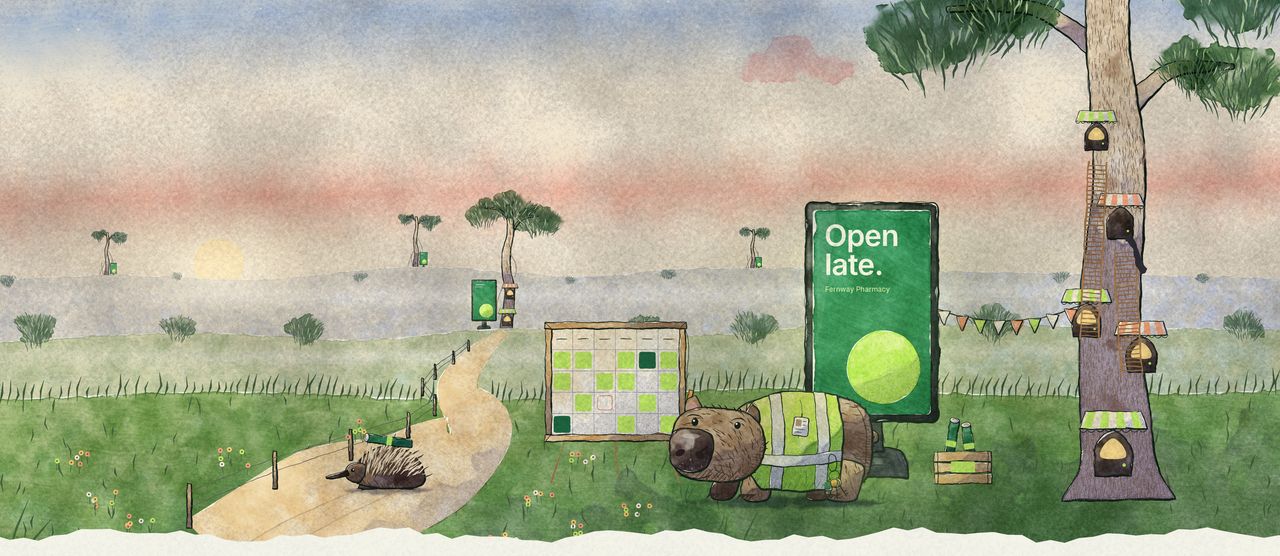
First light over a network of centres. A road winds back through misty hills from one centre to the next, each a gum with its own screen at the gate. In front, the home centre: shopfronts stacked up a big gum, bunting to its screen, the wombat at the booking board and an echidna tenant coming up the road with rolled artwork.
An inbox crate holding a tenant's rolled artwork, the booking's code tied on as a punched card tag.

From booking to screen, without the inbox.

  1. Book

    Your team books a customer onto centres and dates. Or the customer asks for a booking, and you accept it.

  2. Submit

    The customer’s designer enters the booking’s code in the Mestra plugin for InDesign, Figma or Canva. No Mestra account.

  3. Checked

    Every size the booked screens need is laid out once and checked against your ad rules and the screens’ specs.

  4. Approved, live

    You approve the exact files, and they go to the booked screens. Change a file and it comes back to you.

Every centre. One booking board.

Every centre’s screens, booked from one place.
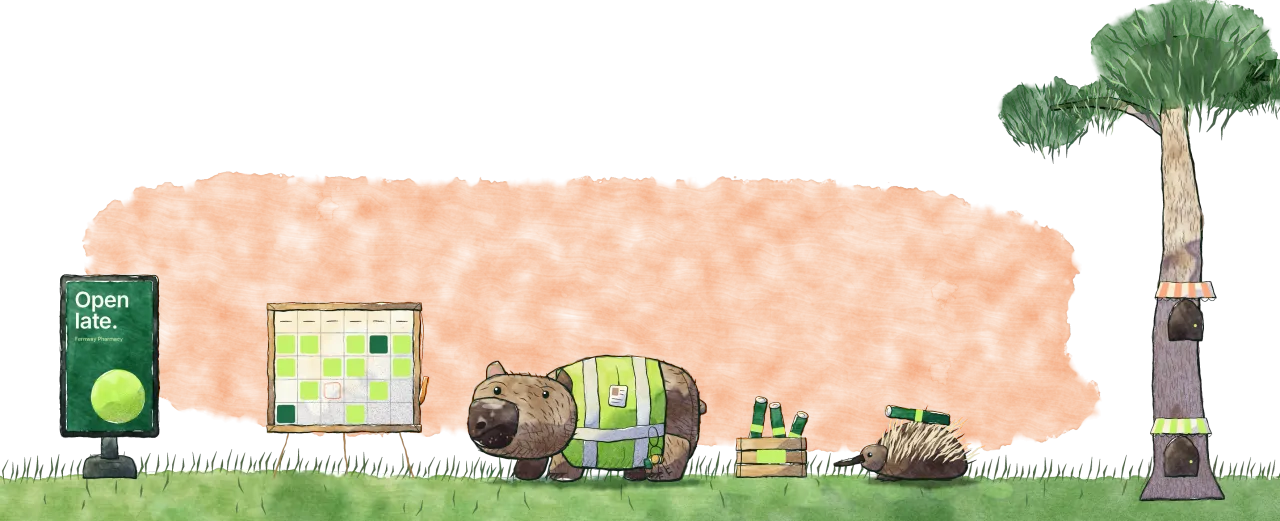
A wombat in a hi-vis vest minds a booking board with most slots taken in green and one pencilled in. An echidna tenant brings rolled artwork to a crate, the centre’s screen stands at the gate and shopfronts are tucked into a gum.

Your name on the door.

Customers see your portal, your colours and your address. Mestra stays out of sight.

  • Your logo, colours and sign-in picture
  • Your own web address and email domain
  • Custom CSS when colours aren’t enough
  • Mestra’s name taken off, with white label
HHarbourlineLarkspur Cafe

Lunch specials · booking

Centres
3 centres
Dates
2 weeks from Monday
Artwork
Checked
Submission codeLKS-2041
SSaltbush CentresLarkspur Cafe

Lunch specials · booking

Centres
3 centres
Dates
2 weeks from Monday
Artwork
Checked
Submission codeLKS-2041

example

The networks and customer are samples.

One booking, start to finish.

Every booking takes the same path, and nothing reaches a screen until you approve it.

  1. The customer’s request

    They ask for dates and screens, from the centres and screens you let them book. Accept it as it is, or change the dates or screens first.

  2. Their artwork, from the plugin

    Accepting sends them a code. Their designer enters it in the Mestra plugin for InDesign, Figma or Canva. No Mestra account.

  3. The checks

    Every size the booked screens need is laid out once and checked against your ad rules and the screens’ specs. A size that fails waits for your team.

  4. The approval

    You approve the exact files for every size. Only what you approve goes on screen, and a changed file comes back to you.

  5. The booked screens

    The approved files go live on the screens they booked, on the start date or when you press Go live.

Good to know

Which screens does it publish to?
All your screens: Broadsign, Doohly and Mestra Player. Approved files go to the screens each booking picked.
Do customers need a Mestra account?
No. They sign in with a code sent to their email. Your team uses its Mestra accounts.
What do customers see?
Their own bookings, the screens you let them book, and previews of every size. Not your prices, and not anyone else’s bookings.
What do your ad rules cover?
Things like a required legal line or the smallest call to action, checked on every size. A size that fails waits for your team.
Can our other systems hear about bookings?
Yes. Webhooks fire when a booking is submitted, approved, live, partly live or taken down.
How is it set up?
With us. Network is part of an Enterprise agreement, set up for your centres and screens.

Network is part of an Enterprise agreement, priced on your network.

Talk to us

Your screens, your name. Their artwork, checked.