Integrations
Doohly
Connect your Doohly space to see your screens, publish approved artwork to them and, if you want, see when it played.
Where it lives
Doohly’s pages are in the Player app at player.withmestra.com, under Doohly in the Connected group of its menu: Overview, Screens and Published. An owner turns Doohly on in Settings > Integrations in the Mestra hub. Mestra Studio’s publish dialog publishes to it.
What it does
- Shows every screen and frame in Doohly with its size, and flags covered frames and stretched artwork.
- Turns your real screens into the sizes Mestra makes.
- Publishes approved artwork to the screens you pick, as bookings in Doohly.
- With Report plays on, shows how often and when each booking played.
Mestra never deletes anything in Doohly and only changes bookings it made.
Dynamic variants
Doohly is one of the places dynamic variants publish, as is Broadsign. Publish a campaign from its Publish tab and Mestra switches the booking between your approved, checked variants. See Dynamic variants.
Who can do what
- Owners turn Doohly on, connect it, replace the token, disconnect, set the publishing defaults, choose who can publish, and turn on Report plays.
- Editors link frames to brands, set screen sizes and make format sets. They can publish and go live if an owner allows it.
- Reviewers can’t publish.
Owners choose each editor’s publishing level under Publishing on Doohly’s Overview page in the Player app: Can’t publish, Can publish (from an approved review) or Can publish without review (also from a run). Owners can always publish. A size that failed its layout checks is held, and only an owner can publish it, with a reason.
Connect
An owner connects Doohly once.
- Open Settings > Integrations, turn on Doohly and read what Mestra stores, reads and sends. Select Turn on.
- Select Open Doohly. It opens Doohly’s Overview page in the Player app.
- Paste your Doohly API token into API token and select Connect.
A Doohly token has full access to your Doohly space, so keep it safe. Mestra shows only its last few characters after you connect.
Mestra reads your screens, frames, sizes and online status, and which bookings are playing. It doesn’t send your screen data to the AI provider. After the first connection you land on Screens.
To change the token later, select Replace token on the Connection card.
Screens
The Screens page lists each screen with its frames, sizes and what is booked on them. Select Refresh to read Doohly again.
- Link frames to a brand. Tick the frames, then choose Link to brand….
- If a screen’s size isn’t known, select Set size and enter it once. Mestra remembers it.
- Select Make a format set to turn the frames into the sizes Mestra makes for that brand.
Each frame can show a check: Won’t play (no operating hours), Stretched, Cropped, Covered, Offline, Size needed or OK. Fix the ones that matter before you publish.
Publish
You can publish approved artwork from a run or from a review.
- From a review: open the review, choose the menu and select Publish to screens. The round needs approved sizes.
- From a run: open the run and select Publish to screens.
In the Publish to screens dialog:
- Check the Start date and End date, and choose a Purchase type.
- Choose All day, or Custom to pick hours and Slots.
- For each size, tick the frames to publish to. A frame with a problem shows it beside the name. Some problems stop you publishing it. Others need a reason in Reason for publishing anyway.
- Select Publish.
Studio stays on the page you were on and shows Published. See it in Mestra Player. The link opens Doohly’s Published page in the Player app.
Publishing makes draft bookings. Nothing plays until someone chooses Go live.
Publishing the same campaign again after a new approved round swaps the artwork in the existing bookings. If a booking is already live, you confirm first, and the new artwork plays as soon as Doohly takes it.
The Published page
Published, in the Player app, lists every publish, newest first. Select Show screens to see each size and its frames. Each size has a pill:
- Sending: Mestra is sending it to Doohly.
- Draft: it’s in Doohly but won’t play yet.
- Sent to screens: it’s live in Doohly.
- Played: it has played. The count and the last play time follow.
- Replaced: newer artwork took its place.
- Ended: its dates have passed.
- Failed: it didn’t go through. The reason shows beside it.
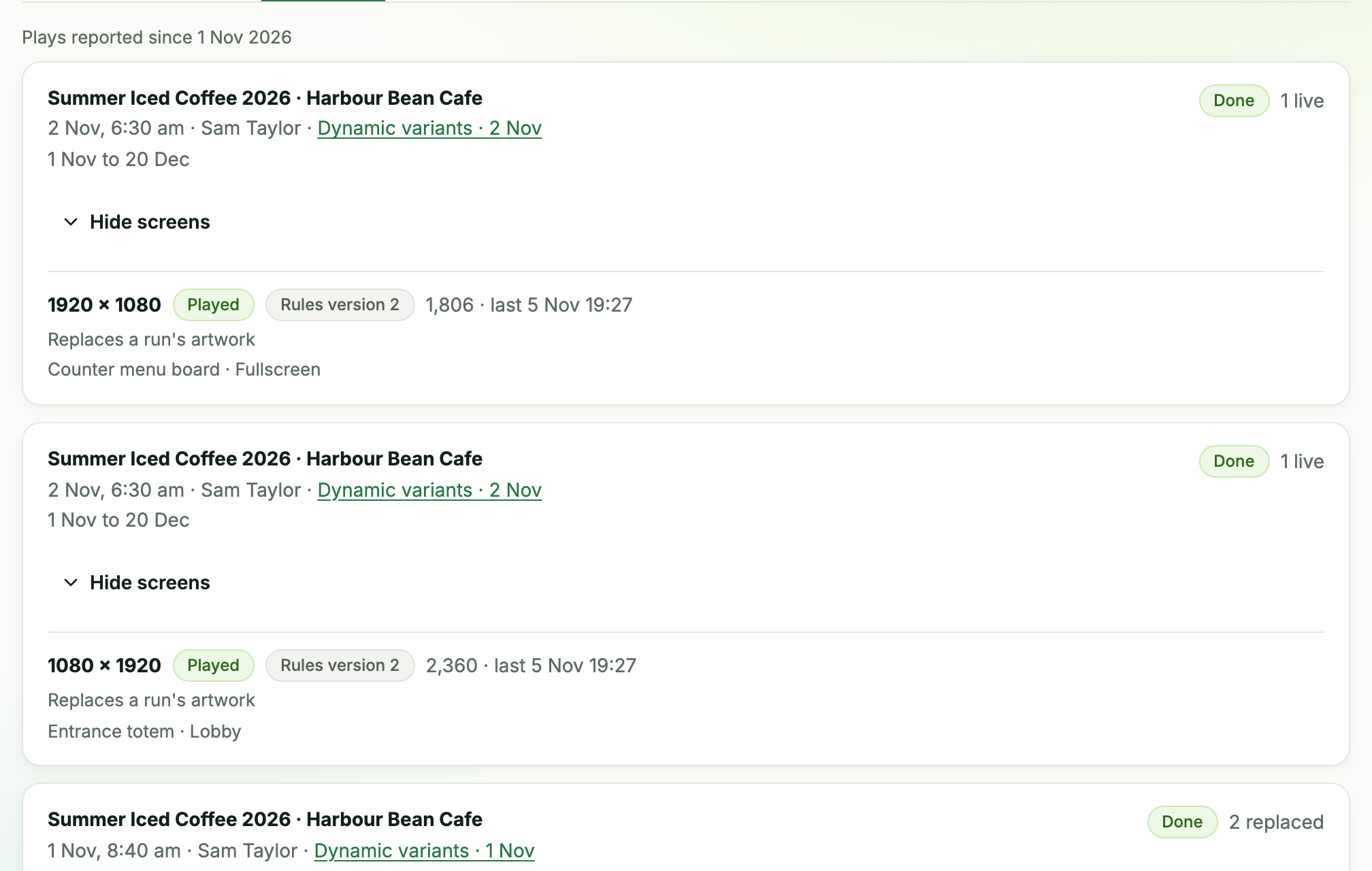
A size can also show Rules version N, which says which approved rules its file passed.
Go live and Retry the rest
- On the publish, select Go live.
- Choose the Status, then select Send to screens. The bookings start playing on their dates.
If some sizes failed, select Retry the rest. Mestra sends only what didn’t go through. If a publish is partly ready when you go live, Mestra says how many it sent and how many weren’t ready.
Report plays
Turn on Report plays to see when your artwork played. Only an owner can turn it on.
- In the Player app, open Doohly > Overview.
- In the Report plays card, select Turn on.
- Copy the address and the key. The key is shown once, so copy it now.
- Send both to Doohly support (support@dooh.ly). They set up the feed.
- The first time you publish a campaign, activate it once in Doohly. On the Published page, Activate in Doohly shows until you do. Later publishes to the same campaign don’t need it again.
While Report plays is on, the dialog also reminds you to activate the campaign in Doohly after publishing.
Once plays arrive, a size shows Played, with the number of plays and the last play time in the screen’s local time. The card shows Last report with its date, or No reports yet.
While Report plays is on, the Published page shows Plays reported since and the date reporting started. Bookings made before then stay Sent to screens.
On the Rules page, each version that has plays shows Played N · M screens under Versions.

New key and Turn off
- New key gives you a new key. The old key keeps working for 7 days, so you can update Doohly without a gap. Send the new key to Doohly support.
- Turn off stops new reports at once. The plays Mestra already received stay.
Network bookings
If your organisation runs a Mestra Network, bookings on Doohly screens show each screen’s free slots, hold the times while a request waits for staff, and publish to the screens when staff approve. Network now books Doohly, Broadsign and Mestra Player screens the same way. A booking that names screens in more than one of them holds and publishes to each.
Disconnect
An owner selects Disconnect on the Connection card, then confirms. Mestra forgets the token and who may publish. Your screens, links, sizes, publish records and play records stay as history. Bookings already in Doohly stay as they are, and a publish in progress stops. You can also revoke the token in Doohly.
Troubleshooting
No plays are showing. Check that Report plays is on and that Doohly support has the address and key. The card shows No reports yet until the first report arrives. Then check that you’ve activated the campaign in Doohly.
Activate in Doohly won’t clear. It clears once the first report from Doohly arrives. Activate the campaign in Doohly.
The Played count looks low or late. Play data comes from Doohly, and it can lag. Bookings made before Report plays was on never show plays.