How-to guides
Data feeds
A data feed is a web address that answers with JSON. Mestra reads it and uses the fields you choose to pick which dynamic variant plays. Mestra has no data source of its own. You connect yours.
Add a feed
- Open Settings > Integrations > Data feeds > Open data feeds.
- Select Add a feed.
- Fill in the form:
- Name: what you’ll call it.
- Use it for: Signals for a screen (a few values) or A table of rows (a whole content table).
- Address: an
httpsaddress. It can include screen placeholders (below). - Keys: any keys your feed needs. Each has a name and a value.
- Refresh every (seconds): how often to ask again. The shortest is 60.
- Oldest answer to use (seconds): how long to keep using the last good answer if the feed stops working.
- Fields: for each value you want, its Path in the answer and the Signal name to give it.
- Select Save, then Test.
Placeholders
Put a placeholder in the address and Mestra fills it in for each screen:
| Placeholder | Fills in |
|---|---|
{lat} |
The screen’s latitude |
{lon} |
The screen’s longitude |
{postcode} |
The screen’s postcode |
{city} |
The screen’s city |
{screen_id} |
The screen’s ID |
They can go in the path or the query, not in the host. A screen’s location and details come from your screen network. If a screen doesn’t have one of the facts the address needs, that screen gets no values from the feed.
What Mestra sends to your feed
Mestra asks for your address, with the screen’s values filled in, and sends your keys. That’s all. It never sends your keys to a screen. If your address uses {lat}, {lon} or {postcode}, the screen’s location goes to your feed, so only use a feed you trust with it.
Keys
Keys are sent as request headers, and Mestra keeps them encrypted. After you save, Mestra shows only the last few characters. To change a key, enter its value again. Saved keys only go to the address they were saved for. If you move the feed to a new host, enter the keys again.
Fields
A path is the route to a value in the answer, with dots between the steps. A number steps into a list. For this answer:
{ "weather": [ { "main": "Rain" } ], "main": { "temp": 18.4 } }weather.0.main is Rain and main.temp is 18.4. Text, numbers and true or false work. A signal name uses lower case letters, digits and underscores, up to 40 characters. It can’t be a name Mestra already uses (time, day, date, screen_id, size, tags, lat, lon, city, state, postcode), and two feeds can’t use the same one.
Limits
- Up to 20 feeds, 50 fields each and 10 keys each.
- Answers must be JSON and under 1 MB. Mestra waits 10 seconds.
- A feed shows Working, Failed or Not read yet. A failed one says why, such as Couldn’t reach it or Answer wasn’t JSON.
Connect a weather feed
OpenWeather
OpenWeather’s current weather API has a free plan with a key.
-
Sign up at openweathermap.org and copy your API key.
-
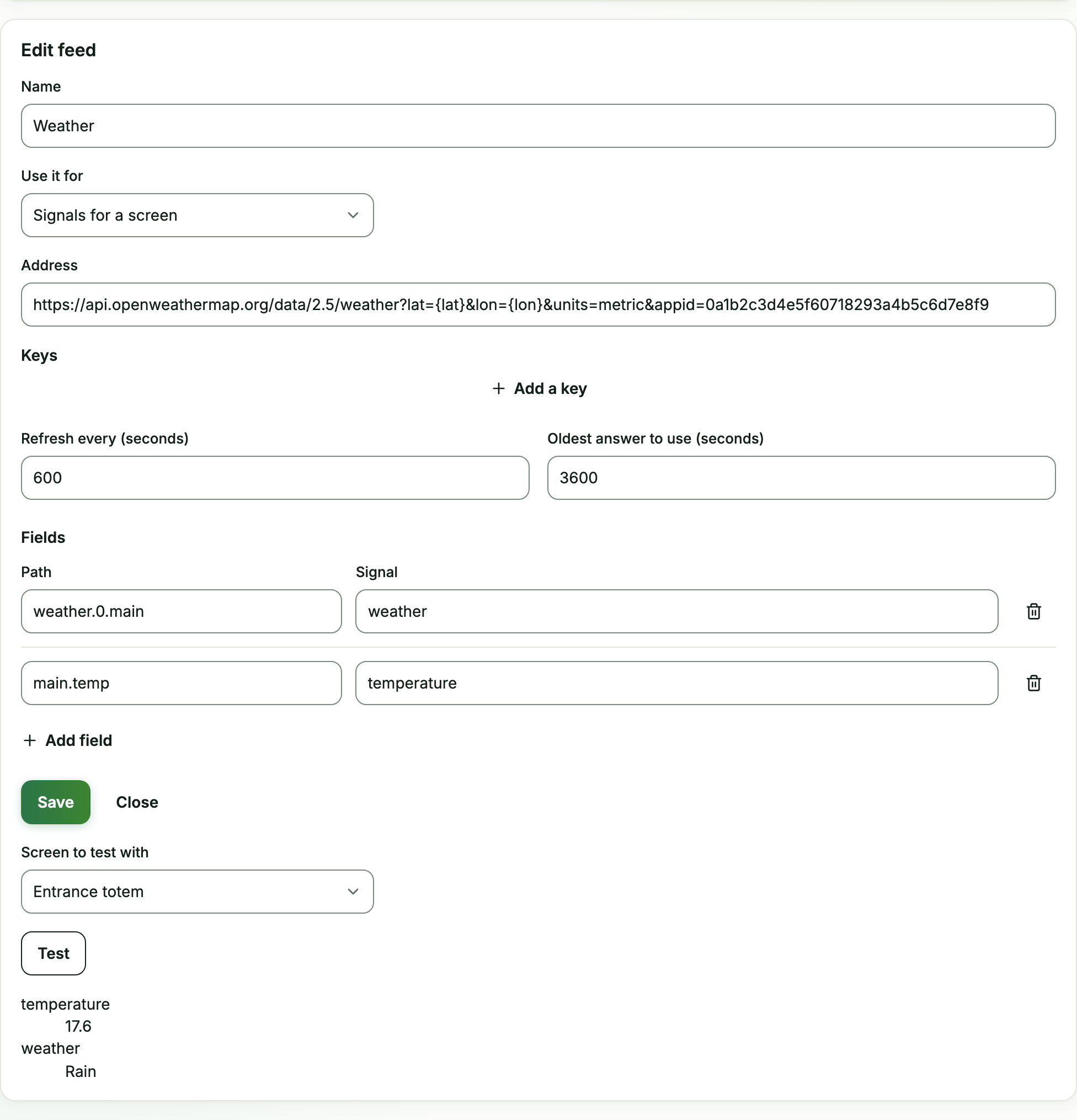
In Mestra, select Add a feed and name it
Weather. Leave Use it for on Signals for a screen. -
Paste this into Address, with your key in place of
YOUR_KEY:Text https://api.openweathermap.org/data/2.5/weather?lat={lat}&lon={lon}&units=metric&appid=YOUR_KEYOpenWeather takes its key in the address, not as a header. A key in the address is saved as part of the address. It isn’t encrypted like Keys, and it shows to anyone who can open the feed. Only owners can see data feeds.
-
Set Refresh every (seconds) to
600. -
Add two fields:
- Path
weather.0.main, Signalweather. The kind of weather:Clear,Clouds,Rain,Drizzle,Thunderstorm,Snowand so on. - Path
main.temp, Signaltemperature. The temperature in °C.
- Path
-
Select Save. Under the form, choose a Screen to test with (one that has a location) and select Test. You should see
weatherandtemperature.
The Weather starter in dynamic variants looks for fields named weather and temperature, so it picks these up. It makes Rainy, Sunny, Hot and Cold variants. Words are matched without worrying about capitals, so rain matches Rain.
Open-Meteo
Open-Meteo needs no key to try. Its free service is for non-commercial use, so check their terms and plans before you use it on live screens.
-
Name the feed
Weather. -
Address:
Text https://api.open-meteo.com/v1/forecast?latitude={lat}&longitude={lon}¤t=temperature_2m,weather_code -
Add two fields:
- Path
current.temperature_2m, Signaltemperature. The temperature in °C. - Path
current.weather_code, Signalweather. A number:0and1clear,61,63and65rain,80to82showers.
- Path
-
Select Save, then Test with a screen.
Open-Meteo gives weather as a number. After you start from the Weather starter, set each variant’s weather to the numbers you want, for example 61,63,65,80,81,82 for Rainy and 0,1 for Sunny.
Try it
You don’t need to wait for the weather to test a variant.
- Open the campaign’s dynamic variants and go to the Check tab.
- In What would show now?, choose a Screen, then choose Weather
rainand enter Temperature12. The Weather control offers each variant’s condition as written. With Open-Meteo, choose the row of codes as written, such as61,63,65,80,81,82. - Select Check.
The Rainy variant shows Would show now, with the reason. Leave a value blank and Mestra uses your feed’s real answer for that screen.
Connect a price or stock feed
A price feed doesn’t need a screen, so the address has no placeholders.
Finnhub (stock prices)
-
Get a key at finnhub.io.
-
Add a feed called
Stock price. -
Address (change
AAPLto your symbol):Text https://finnhub.io/api/v1/quote?symbol=AAPL -
Under Keys, select Add a key. Set Key name to
X-Finnhub-Tokenand Key value to your key. -
Add two fields:
- Path
c, Signalprice. The current price. - Path
dp, Signalchange_percent. The change today, as a percent.
- Path
-
Select Save, then Test.
Check that your data licence lets you show prices on screens, and how fresh the prices are.
Frankfurter (currency rates)
Frankfurter shows exchange rates and needs no key.
-
Add a feed called
AUD to USD. -
Address:
Text https://api.frankfurter.dev/v2/rates?base=AUD"es=USD -
Add one field: Path
0.rate, Signalaud_usd. The answer is a list, so0is its first item. -
Select Save, then Test.
Use it in a variant
- In dynamic variants, pick Your own data.
- Choose the Data field, such as
price, and how it compares: Is, Is one of, Is above, Is below or Is between. - Set the number on each variant, for example
priceabove250. - On the Check tab, try a price in What would show now? and select Check.
A table of rows
Choose A table of rows to keep a whole campaign’s content table in your own system. Give the Campaign key and the address of a CSV file (or the same table as JSON). It can’t use placeholders or fields. Mestra reads it again on its refresh time and saves it as the campaign’s table, checked against the approved rules like any other.
Turn data feeds off
Turning data feeds off deletes your feeds, keys and last answers. Nothing changes in your feed’s own system.
Troubleshooting
Test says Pick a screen to test this feed. The address uses a screen placeholder and you chose No screen. Choose a screen.
Test says The feed gave no values. The screen has no location or the fact the address needs, or the feed’s last error shows instead. Choose a screen that has one.
Test says No values. A table feed was read, but it had nothing to show.
The feed says Failed. Read the reason beside it. Couldn’t reach it means the address, the key or the service. Answer wasn’t JSON means the address returned something else, often a sign-in page.
My field is missing. Check the path against the answer, step by step. Names are case sensitive.
The variant I want never shows.
In What would show now?, check that the feed’s value matches the variant’s condition, such as Rain against rain,drizzle.