How-to guides
Dynamic variants
Set up a campaign whose artwork changes on its own. Each variant is built from what the brand approved and checked against your rules before it can play.
1. Set up the variants
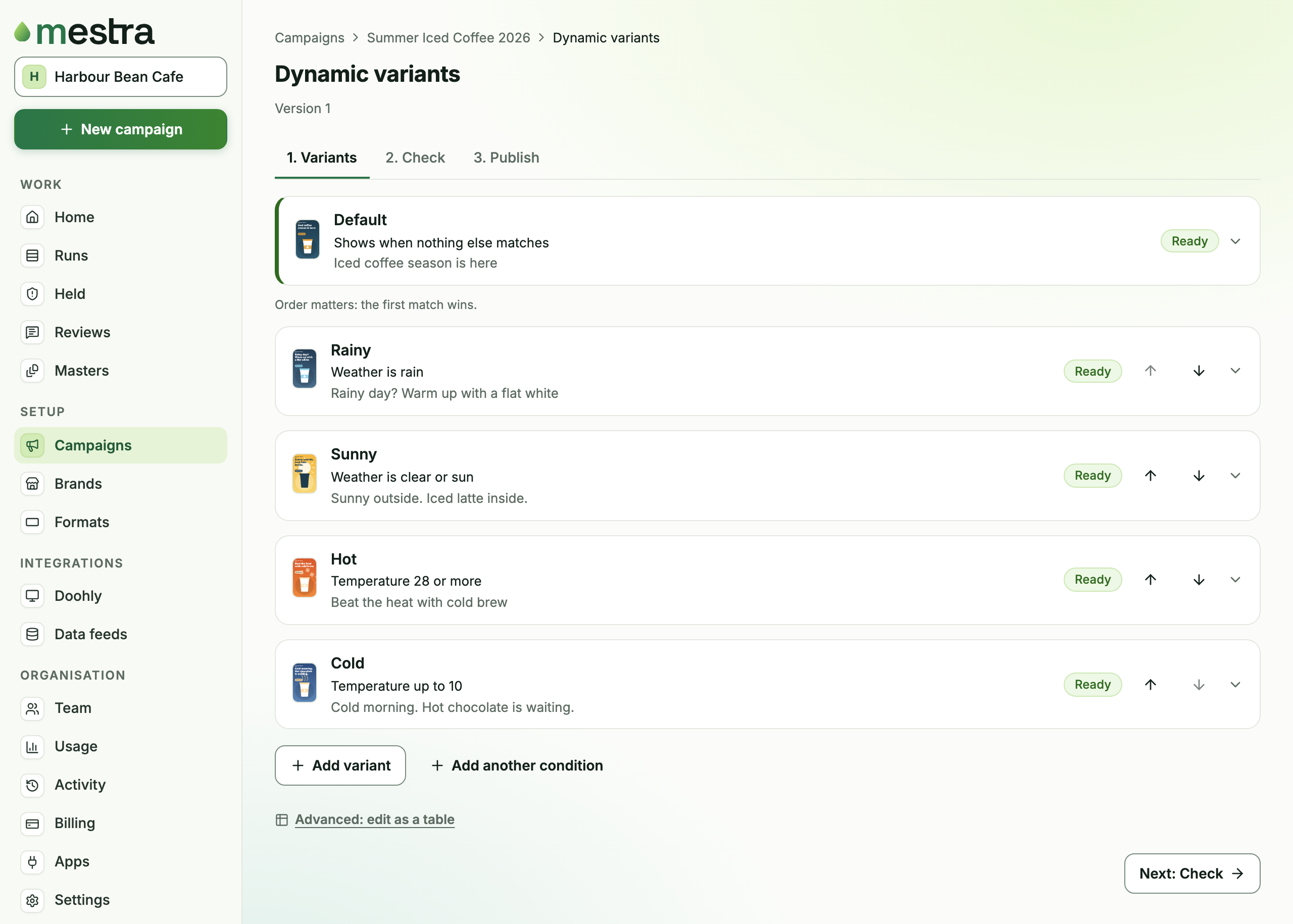
- Open Campaigns and choose your campaign. Below its settings, select the Dynamic variants row (“Switch the artwork on screens by time of day, weather or your own data.”). A campaign has this row once it has been saved.
- Under What changes the ad?, pick one to start with: Time of day, Day of week, Weather, Countdown to a date or Your own data. You can add more later with Add another condition.
- Mestra adds a Default variant and a few more to fill in. The default shows when nothing else matches.
- Open each variant and set its name, when it shows, and what it shows: the text for each part of the ad, the colourway and the master. Select Add variant for more.
- Select Save.
Text, colourways and masters can only come from what the brand has approved. If a variant uses something new, a banner says how many variants have new text or looks. Select Send for approval. Mestra makes previews, then select Send to brand. The brand approves them once, and then they can go live. Nothing that needs approval can play until the brand approves it.
The conditions
Each condition reads one thing about the moment or the screen. The conditions you can build:
| Type | What it checks | Example |
|---|---|---|
| Time | A window of the day | 06:00-11:00 |
| Days | Days of the week | mon,tue,wed,thu,fri |
| Dates | A date range | 2027-12-01..2027-12-24 |
| Range | A number, with a low, a high or both | 28.. (28 or more), ..10 (10 or less) |
| Match | One of a list of words | rain,clear |
| Tag | A tag on the screen | food-court |
A blank condition means any. A variant needs every condition it sets to hold. Mestra uses the first variant that fits and falls back to the default.
Time, day and date use the screen’s own time zone. A screen’s city, state, postcode, location and tags also come from the screen network, and your feeds add their own fields.
Advanced: edit as a table
Select Advanced: edit as a table to see the same variants as a table. You can also upload a CSV file there. Changes in the table show in the guided editor too.
2. Check every size
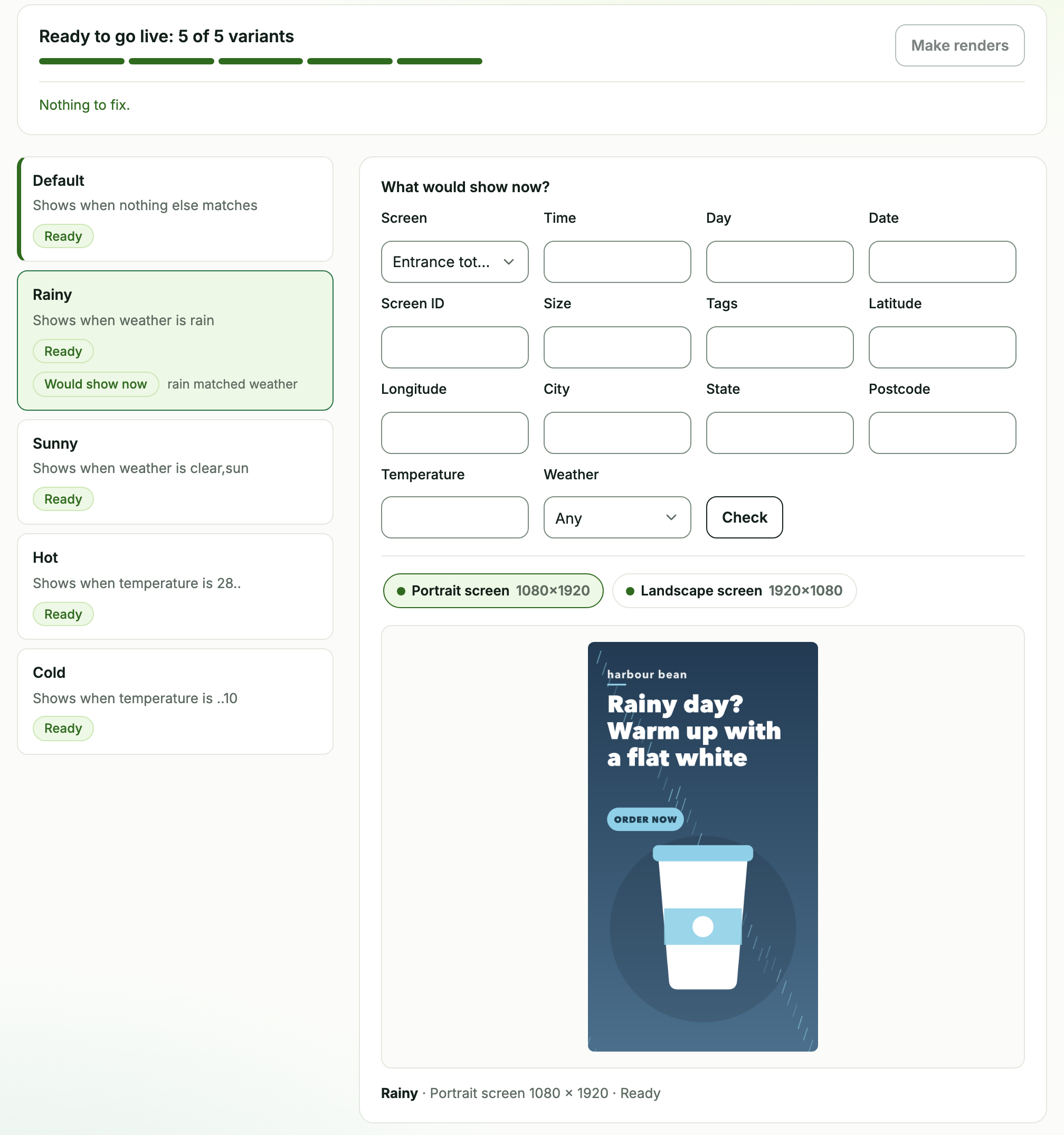
Open the Check tab. Mestra makes every variant at every size and shows each one as Ready, Making, Not ready, Failed, Held or Needs approval.
- A size that fails your rules is Held for a person. Select See held to look at it. The other sizes carry on.
- Select Make renders if any are missing. Mestra also makes them for you once the rules are approved.
- Select a variant and a size to see it large.
What would show now?
The Preview pane answers “what would play?” before anything is published.
- Choose a Screen, or leave it on No screen.
- Set the time, day, date or any feed field you want to try.
- Select Check.
Mestra marks the variant with Would show now and says why. A value you leave blank is the real one: the screen’s own time and details, and your feeds’ answers right now. With No screen, a blank time, day or date is read in UTC, so set the time you want to try. A feed that needs a screen’s location gives nothing unless you choose a screen. Nothing changes when you check.
3. Publish
Open the Publish tab and select Publish to Doohly or Publish to Broadsign. The dialog is the same as for any publish. See Doohly or Broadsign.
Once it’s live the tab shows Switching on, and Mestra switches the booking between your approved, checked variants by itself. Select Stop switching to stop. What is on screens stays until you publish again.
Publishing needs the default variant ready at every size, and all your changes saved.
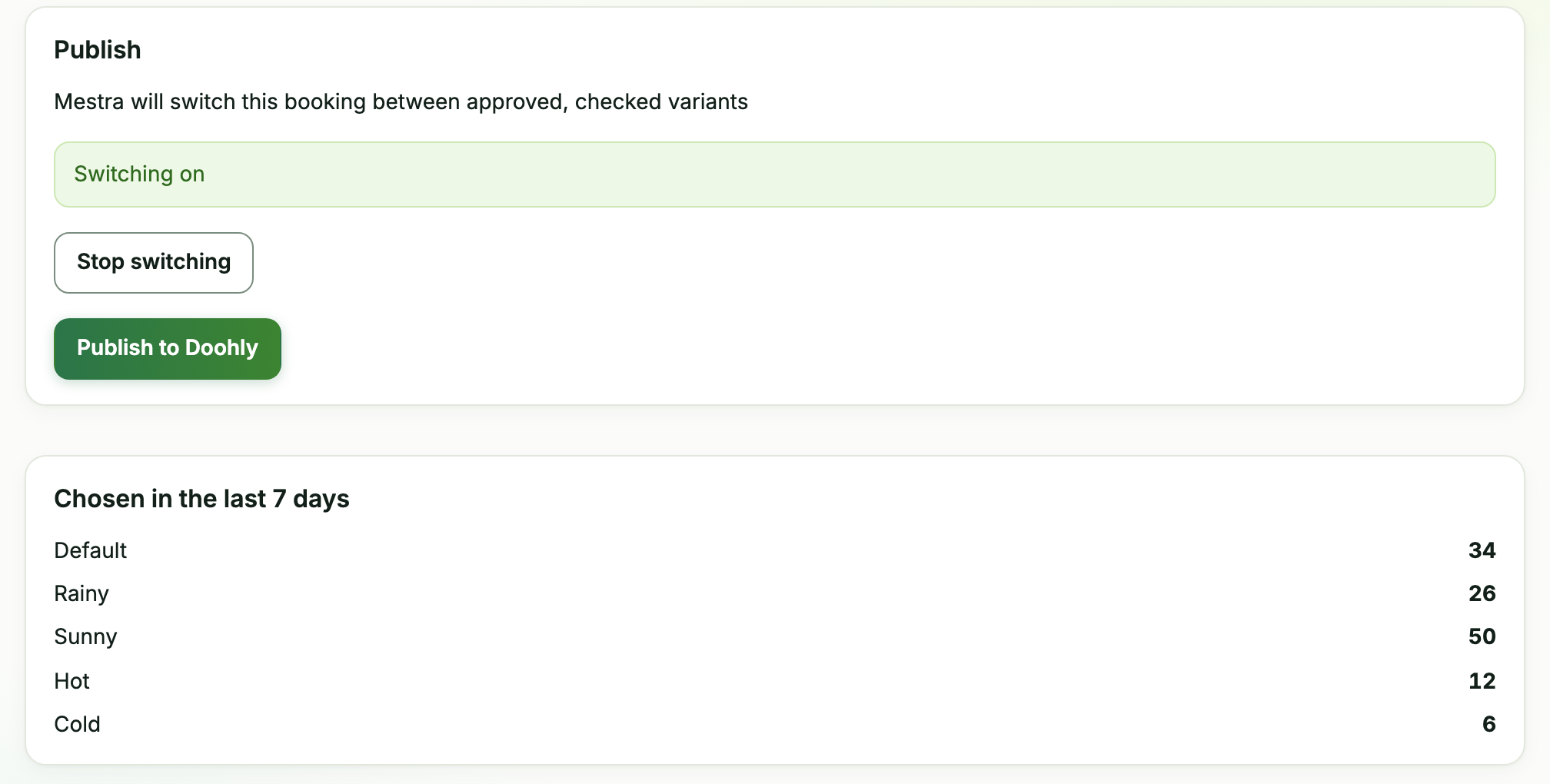
Chosen in the last 7 days counts how often each variant was picked. It counts choices, not plays. For when the artwork played, see Report plays.
How long Mestra keeps the record
Mestra keeps a record of which variant each screen got. An owner chooses how long under Settings > General > Dynamic content: 30 days, 90 days, 1 year or Keep everything. Older records are deleted by themselves. New organisations start on Keep everything.
From your own systems
Read and save the table, and test which variant a screen would get, with the API or from an agent with the MCP tools.
GET /api/v1/campaigns/{key}/dynamicreads the table. MCP:campaigns.dynamic_get.PUT /api/v1/campaigns/{key}/dynamicsaves it. MCP:campaigns.dynamic_save.POST /api/v1/campaigns/{key}/dynamic/decidetests what a screen or a set of values would get. MCP:campaigns.dynamic_decide.
Troubleshooting
A variant says Needs approval. It uses text, a colourway or a master the brand hasn’t approved. Select Send for approval in the banner on the Variants tab.
Publish is greyed out. The default variant isn’t ready at every size, you have unsaved changes, or the brand hasn’t approved the variants yet. Check the Check tab and the banner on the Variants tab.
A feed field isn’t in the list. Connect the feed first. See Data feeds.
A variant never shows. Check that its conditions can hold together, and that it’s ready at at least one size. A variant with no conditions always matches, so it wins over every variant after it. Put it last, or make it the default.